
In SEO, you optimize a lot and forget everything. Which day did you rewrite that H1? When did you add that introductory paragraph? Does last Tuesday's traffic spike come from the Google update, from your work the week before, or from a backlink that was finally taken into account? Without a logbook, these questions have no clear answer — and the trade-offs that follow rest on memory, which is to say on very little.
Horusium's Action Tracking module is that logbook, wired directly into your Google Search Console. In this article, we walk through the full method on a real case: an optimization carried out several months earlier on a category page of an e-commerce site. We document the work, read the curve, and organize the follow-up. The site's URL and queries have been masked in the screenshots — but the mechanics are exactly the same as on your own account.
One quirk of the module worth stating right away: it is completely free, no credits consumed, no matter how many actions you document. It's the only Horusium tool that costs nothing to use.
Step 1 — Document an action, even a past one
The first reflex when you discover the module: catch up on your history. Most of us have a backlog of past optimizations we have no written trace of — a title rewritten in January, a FAQ added in March, an internal linking overhaul in April. These actions may have had an impact, or not; without a date placed on the curve, it's impossible to verify.
For this case study, we chose to document work done four months earlier: rewriting the title and adding a short introductory paragraph on a product category page. Nothing extraordinary — a routine optimization. That's precisely the point of the case: to show that a modest intervention becomes legible as soon as you date it.
Head to Action Tracking in the menu, then the New action button. And so: you can track as many actions as you want, on as many sites as you want, without ever eating into your credit balance.
Step 2 — Fill in the action record
The form is deliberately short. Five useful fields, two optional, and the GSC property that detects itself automatically from the URL.
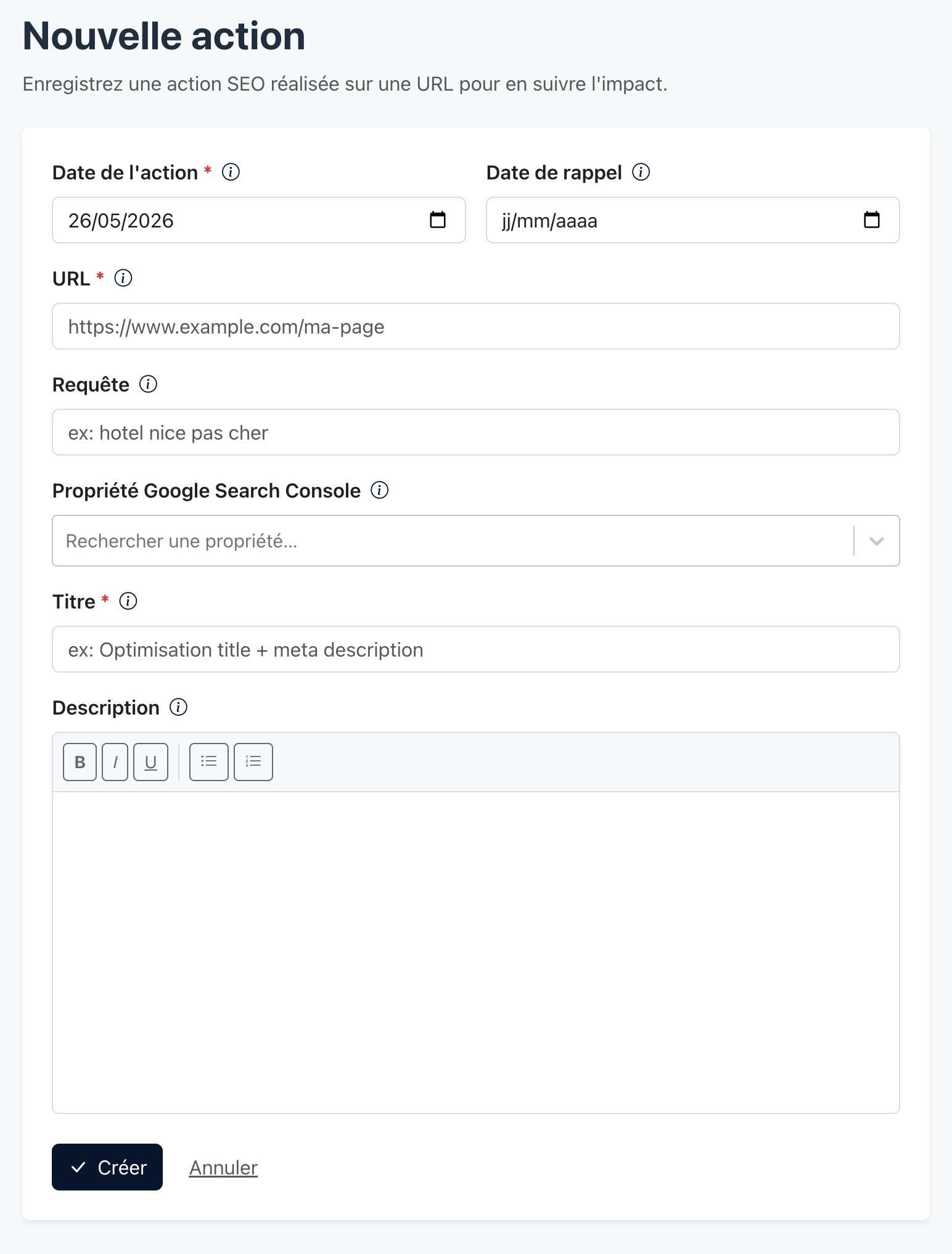
Field by field:
- URL: the page you worked on. It anchors the Search Console curve and the grouping by domain in the listing.
- Target query (optional): if the action targets a specific keyword, enter it. You can then switch the curve to that single query to measure a cleaner impact. For our case, we leave it blank: the category page ranks across a whole semantic field, not on a single keyword.
- Title: a short name, readable later when hovering the black bar (e.g. “Title rewrite + intro paragraph”). Be precise; your future self will thank you.
- Description: a rich text editor. This is where you record the why and the how — old title vs. new, source of the idea, paragraph added, internal linking changes… Everything that will help you, six months from now, understand what you did.
- Action date: the real date of your intervention. It's what positions the black bar on the Search Console curve. For a past optimization, use the true original date — the module accepts earlier dates without a problem.
- Reminder date (optional): if you set a date, Horusium will email you when the day comes to check back on the impact. For an action documented retroactively, this isn't useful; for a fresh action, you typically schedule +3 to +6 weeks (the time for Google to index and for the GSC data to stabilize).
- Search Console property: detected automatically among all your connected Google properties. If you manage several Google accounts (personal, agency, clients), Horusium finds the right one on its own. You can still select it manually from the edit screen.
You save, the record is created and ready to be viewed.
Step 3 — Read the Search Console curve live
This is the screen that justifies the module all by itself. Below the header, the action record displays the Search Console curve for the page in question — clicks, impressions, average position and CTR over the chosen window (90, 180 or 365 days). And above that curve, the vertical black bar of your action, precisely dated.
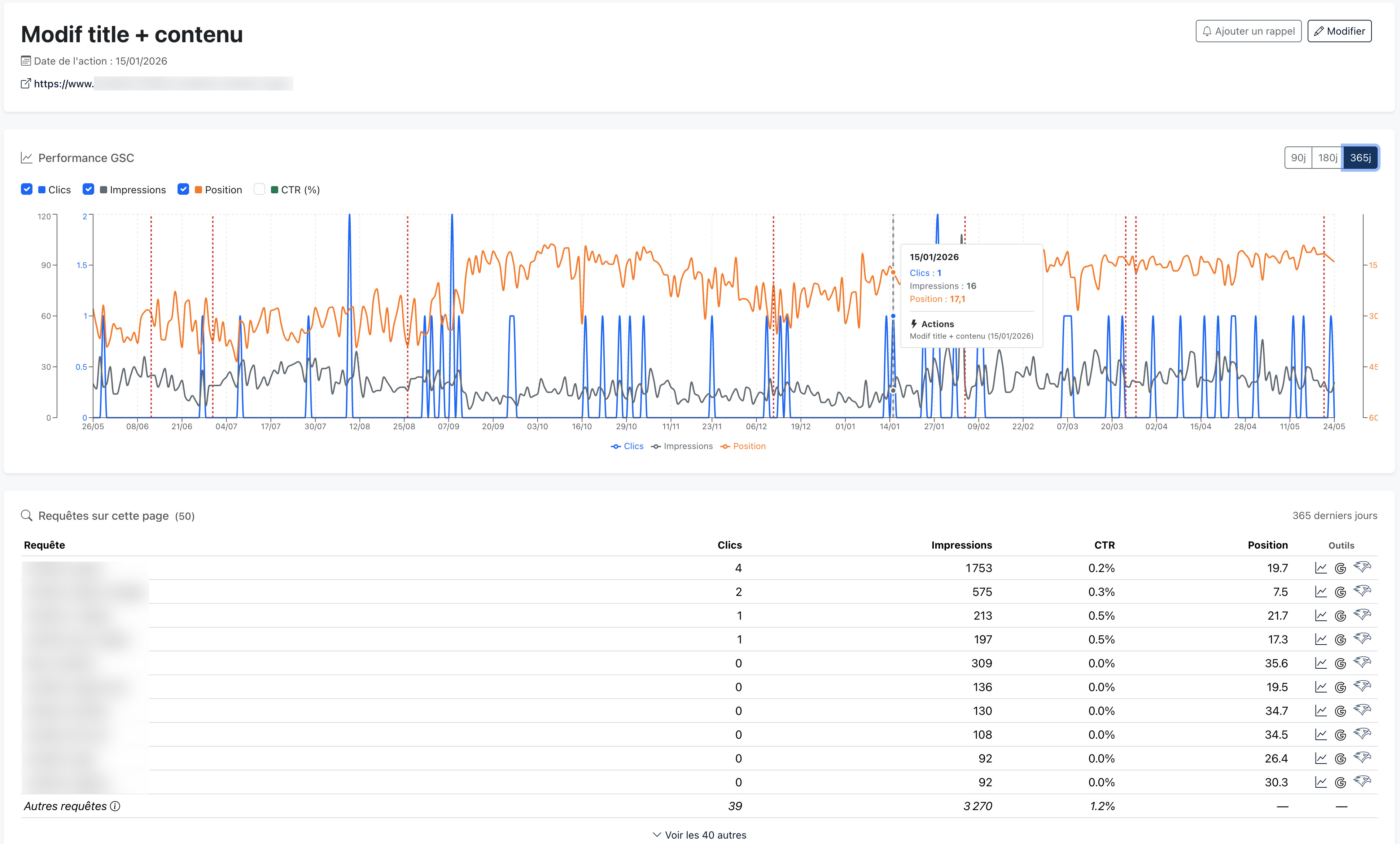
Several things can be read on this chart, in a certain order:
- The black bar: your action, at its exact date. On hover, its title appears. It's the temporal anchor for your whole reading.
- The dashed red lines: the Google updates projected automatically onto the curve from the Google Search Status Dashboard (core updates, spam updates, ranking or indexing incidents). On hover, the update's title and date. Without these markers, you'd regularly confuse the effect of an optimization with the effect of an update — or the other way around.
- The three toggleable metrics: clicks, impressions, average position (and CTR on demand). Each metric has its own scale; you look at one metric at a time so as not to mix up readings, or two when you want to judge a ratio (clicks per impressions, for example).
- The 90/180/365-day selector: the time window. A wide view to spot an underlying trend, a short view to zoom in on the period surrounding the action.
One important point to be clear about: the module doesn't prove anything on its own. It provides the objective frame for interpretation. A page that takes off after an action may owe it to the action, to a favorable Google update, to a freshly acquired backlink, to seasonality, or to the sum of all that. What Action Tracking gives you is the ability to ground that discussion in dated facts rather than fuzzy memories. It's then up to you to decide — with your knowledge of the site and the context.
Step 4 — Zoom in on a specific query
When the action targets an identified keyword (rather than the whole page), you can switch the curve to track only that keyword. The Filter by query toggle then appears above the curve. The page becomes a per-query curve instead of a per-page curve; the impact of a targeted rewrite is often much clearer there than on the average of all the queries the page captures.
In our case, we didn't enter a query — the category page captures a broad semantic field and ranks on dozens of variants. So the toggle doesn't appear. If you document, say, an H1 rewrite driven by an SEO Health opportunity on a specific query, it's a reflex to have.
Step 5 — Schedule a reminder and build up the page's memory
Once the record is created, the steering work continues over time. Two mechanics make the module useful day to day: the email reminder and the accumulation of actions on a single page.
The email reminder is dead simple. If you set a reminder date, you receive a short email on that date inviting you to come back and review the record. If the effect is slow to show — because a Google update pushed everything back, because Google took time to recrawl the page, or because you just want one more check in a month — the record offers a Postpone reminder button. The modal offers four quick buttons (+1 week / +2 weeks / +1 month / +3 months) that save and close on click. It's nothing, but it's exactly what you need to keep a long follow-up from slipping through the cracks.
The accumulation of actions on the same page is the other key feature. Over the months, a page goes through several interventions: a title rewrite in January, a FAQ added in March, internal linking cleanup in May. Each action is documented separately; on the record of any one of them, the curve shows all the black bars for the page, and a Related actions section lists the other interventions with their date and title. After a few months, you have the page's complete SEO memory, dated and legible. This kind of consultable history has considerable value for consultants or in-house teams who come and go and take turns on the same site.
Bonus — Per-domain dashboard (agency mode)
When you juggle several sites — in an agency, as a multi-client freelancer, or even in-house on a group with several brands — the Action Tracking list automatically groups actions by domain. At the top of the page, a row of cards (one per domain, with its favicon and its action counter); one click filters the list to that site only. Handy for switching from one client to another without a manual search.
Combined with multi-account Google support (you can connect several accounts — your personal Google, an agency account, delegated client accounts), it's the screen you keep open in a tab when you juggle several projects. For each action created, Horusium finds the right Search Console property on its own among all the connected accounts, without you having to choose manually.
The method, in short
Just three moves, endlessly repeatable:
- Document: every optimization, as soon as it's done (or as history catch-up for the old ones), goes into an action record — 30 seconds, free.
- Measure: on the reminder date, or when you come back to the record, you read the curve with the dated black bars and the projected Google updates.
- Decide: the tool decides nothing for you. But it gives the objective material to steer what comes next — push in the same direction, adjust, or change strategy.
The value of Action Tracking isn't in the tool itself — it's in the discipline of dating everything. Most SEO consultants have known this for a long time, and most neglect it anyway, because the cost of entering it in a spreadsheet or a Notion is just a little too high. The module makes that discipline painless: the record is created in a few seconds, and the Search Console curve is already wired in below. All the downstream work of review, memory and decision-making becomes possible.
And since the module is completely free, there's no reason to go without it — even to catch up on the history of optimizations already past.